
Assuming you have already installed the add-on using this link, you then need to navigate to sheets.google.com, create a new sheet, and then click on “Extensions”, then on “Pixel AI Plugin – GPT-4 for Google Sheets™” and then you can follow the instructions below:
Step 1:
The first thing you need to do is run “1. Setup Sheet for AI” as this will run through the process of creating the necessary sheets, columns and data for you automatically so that the Add-on works correctly
In the menu that pops up click on the first option: “1. Setup Sheet for AI”
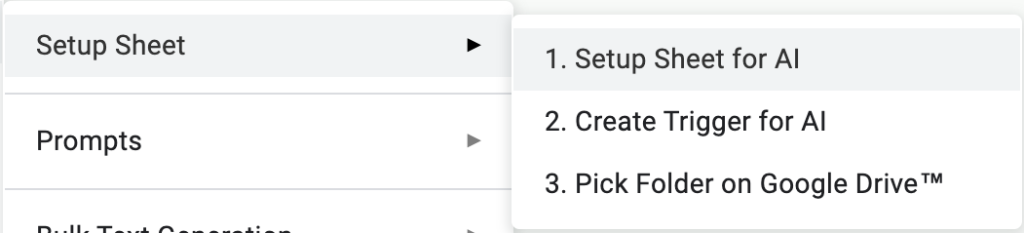
This will start the process of setting up the document:

IMPORTANT: DO NOT RENAME OR EDIT THE SHEETS (OTHER THAN THE DATA IN COLUMNS A,B AND C IN THE “TEXTS”-SHEET AND THE USER AND SYSTEM PROMPTS IN THE “PROMPTS”-SHEET) CREATED BY THE ADD-ON AS THIS WILL KEEP IT FROM WORKING CORRECTLY
Step 2:
The next step is to install a simple trigger, which is necessary for the Add-on to work correctly, as it enables you to generate answers by just clicking the checkboxes in the “Texts”-sheet, as well as switching between built-in prompts in the “Prompts”-sheet
In the menu that pops up click on the second option: “2. Create Trigger for AI”
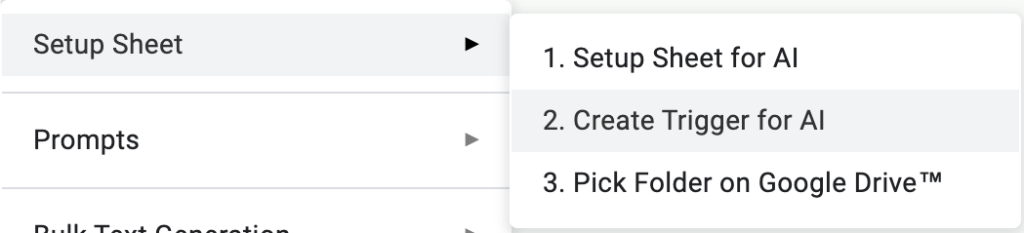
This will allow you to generate answers by just clicking on the checkboxes in the “Texts”-sheet:

Step 3:
The next step is to Pick a Folder on Google Drive™, which is the location where all exported texts are stored as Google Docs™
In the menu that pops up click on the third option: “3. Pick Folder on Google Drive™”
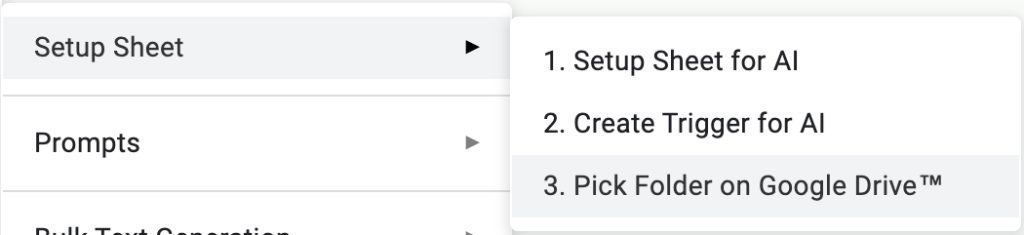
Select a folder in the popup window and click on “Select”:
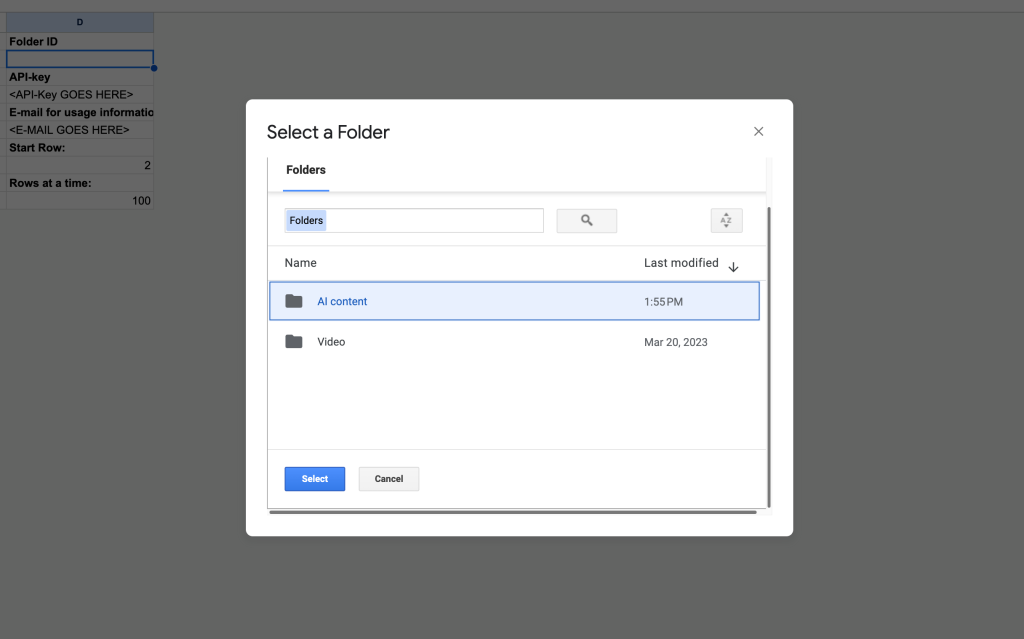
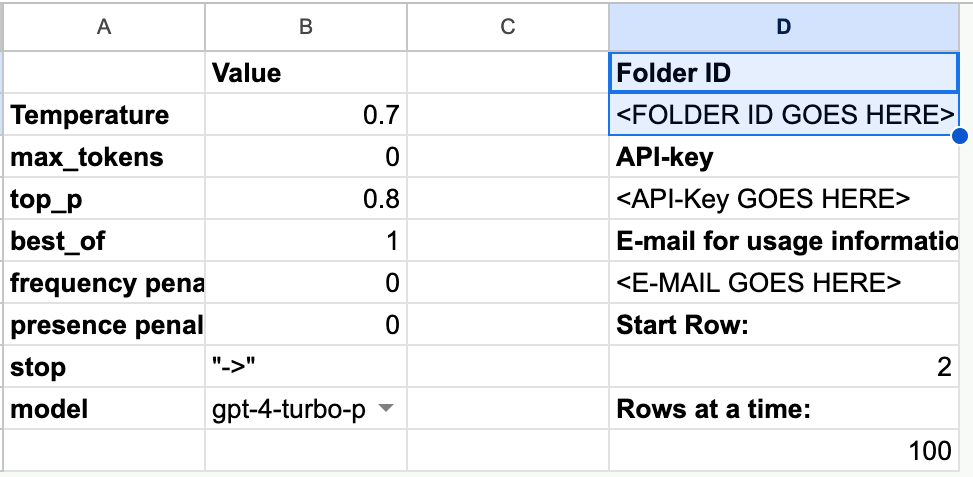
This will give the add-on the rights to write files to the specified folder and it will automatically add the Folder ID in the “Settings”-sheet in cell D2:
Step 4:
The next step is to create your prompts using placeholders: <Col A>, <Col B> and <Col C> each representing the values of columns A, B and C in the “Texts”-sheet. You can now select: “Create Default Prompts”
In the menu that pops up click on option: “Create Default Prompts”
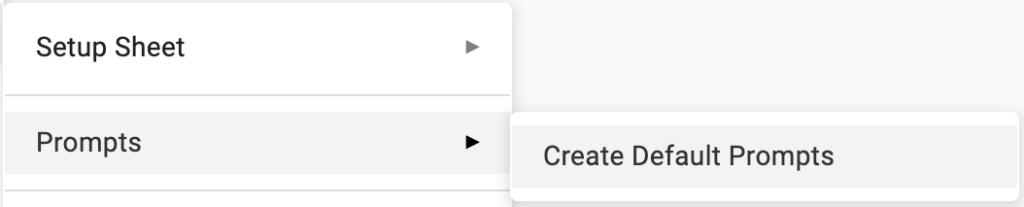
This will loop through each row in the “Texts”-sheet replacing the placeholders <Col A>, <Col B>, and <Col C> with the data from columns A, B, and C.
You can see how it works in the gif below:

Step 5:
The next step involves creating an API-key on OpenAI.com and pasting it into the “API Key”-field in the “Settings”-sheet
Navigate to: https://platform.openai.com/api-keys
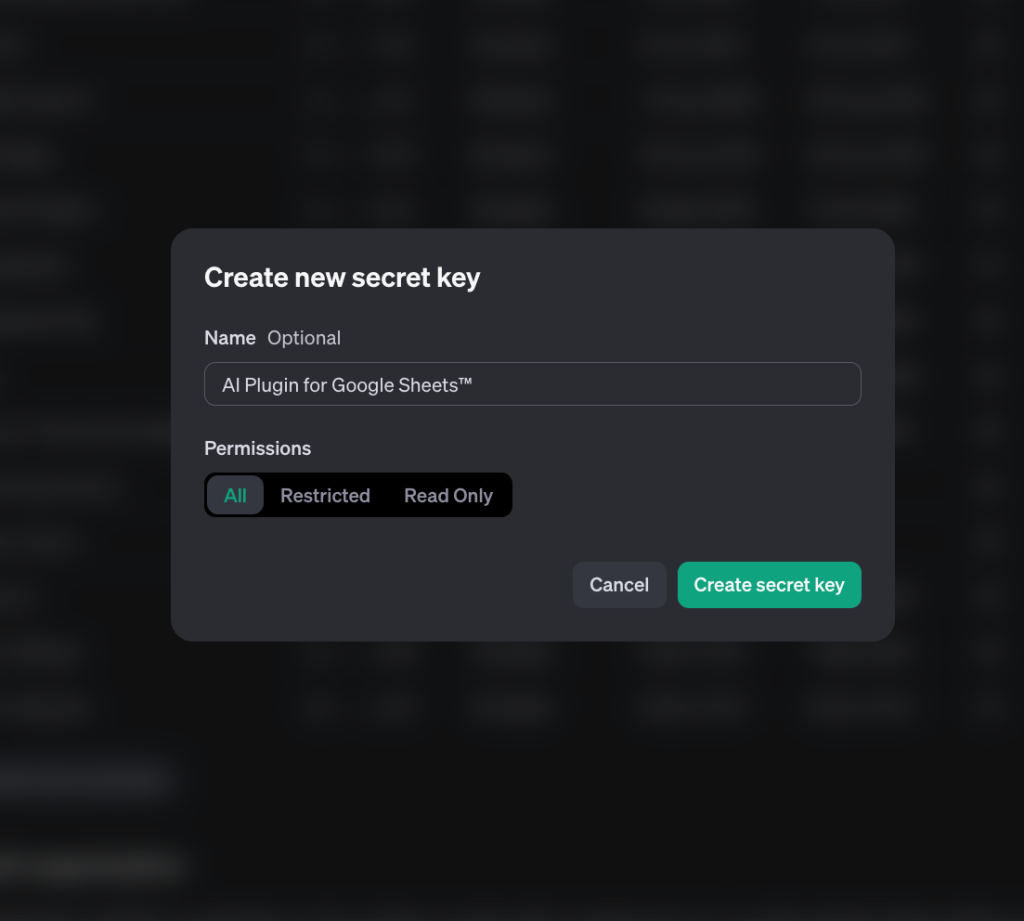
Click on: “Create new secret key”
Give the Secret Key a descriptive name
Click on: “Create secret key”
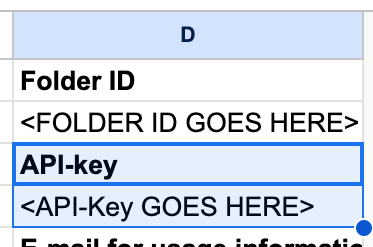
Now copy the Secret Key (=API Key) into the correct field in the “Settings”-sheet (cell D4 – NOTE: Do not include the <>):
Step 6:
You can now generate your answers using either the checkboxes in the “Texts”-sheet, or by using the “Create Texts in Bulk” option in the Add-on menu
For Single Text Generation: Click on a checkbox in the “Texts”-sheet (make sure install the trigger first):

For Bulk Text Generation: In the menu that pops up click on option: “Create Texts in Bulk”:
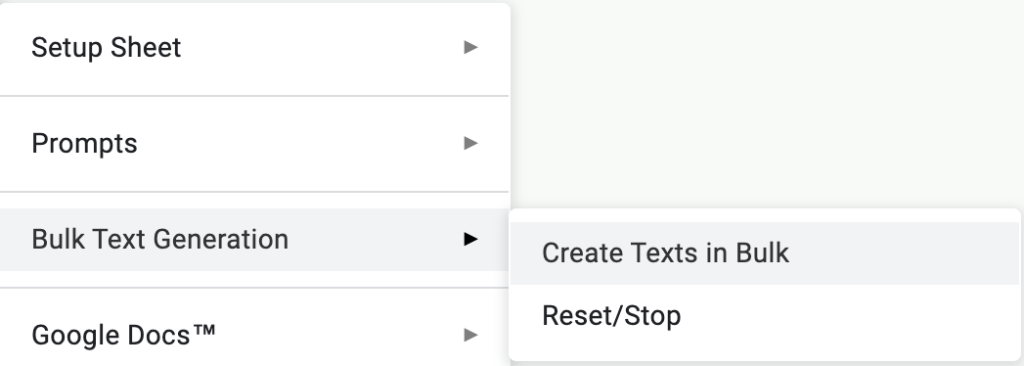
This will loop through each row in the “Texts”-sheet using both the system and user prompts to generate answers
Step 7:
Once you have generated the answers you can now export them as Google Docs™ to the specified folder on Google Drive™
For Exporting The Answers as Google Docs™ to Google Drive™: In the menu that pops up click on option: “Create Texts in Bulk”:

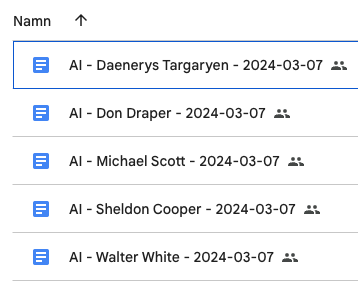
This will loop through each row in the “Texts”-sheet and generate a new Google Doc™ for each generated answer in column F:

FAQ:
When I click a checkbox in the “Texts”-sheet nothing happens – why is that?
This tends to happen when the trigger is not installed. Try installing the trigger and try generating answers again!
Do I need an account on OpenAI to use the plugin?
You need to create an account on OpenAI.com in order to be able to access the API. For GPT-4-models you also need to add a payment method otherwise you will get an error when trying to access the model. In this case you need to pick “GPT-3.5-turbo” as the model in the “Settings”-sheet.
How many answers can I create at once, and how does the “Create Texts in Bulk”-option work?
You can adjust how many texts are created at once using the “Rows at a time“-option in the “Settings”-sheet. The current time-window we have to create all answers is 30seconds, so if the generation takes longer than that you will receive a “timeout”-error. In this case you can click on the “Reset/Stop” option in the menu and then adjust the “Rows at a time” setting a bit lower and try again.
The “Create Texts in Bulk” option works by first generating the first batch of texts starting on the row specified in the “Settings”-sheet in cell D8. Before the first batch is created, but only if the total amount of answers that we want to create exceeds the amount specified in the “Rows at a time” option in the “Settings”-sheet, a time-based trigger is created in the background that then creates the next batch within the next minute or so. Each time a new batch is created a new trigger is also generated. After the first two batches have been created, each batch will only run once every hour. This is a Google Apps Script limitation.
Can I add columns and Sheets?
Adding your own columns is not supported, however, you can add you own sheets if you like. These are not deleted or modified in any way when running the “Setup Sheet for AI”-option in the menu. This is recommended if you want to create backups or run your own functions.
Do you support other models than the ones created by OpenAI?
Yes! In the latest version we’ve now added support for newest models from Google™, OpenAI, and Anthropic!
Can I use the placeholders in both system and user prompts?
Yes! You can use the placeholders in both prompts.
How do I use the comments feature?
This feature is still in beta, and might not work correctly at the moment, but you can open one of the created Google Docs™-files, highlight the text that you want the AI to adjust, and add your comments explaining what you want to do. Now when you click on the “Load Comments” option in the menu, it will load the generated answers along with the highlighted sections and comments into column B of each row. You can then create your own prompts asking the AI to fix the issues by referencing <Col B> in your prompts.
Can I change the name of the Google Docs™ files that are created?
Yes! The names are based on the values in column A – so make sure you do not add too much content in this column. You can also change the names yourself on Google Drive™.
Do I need to use the “Create Default Prompts” feature every time?
No, you can use custom prompts for both the user and system prompts for each row! Just make sure you add some content in either column A, B, or C or else these rows will get deleted. This is because we want to avoid situations where the add-on creates an infinite amount of rows.
Sometimes my rows get deleted despite having both a user and system prompt in these rows, why is that?
This is because we want to avoid situations where the add-on creates an infinite amount of rows. Make sure you add some content in either column A, B, or C or else these rows will get deleted.
I have a great idea for your plugin – how can I get in touch?
You can e-mail me your suggestions on tobias.vuorelma@pixel.se.